
なにかとリモートで保守する必要が出てくるので、Raspberry Pi Connect を CLI で設定しておく。

セキュリティ的には財団に情報が筒抜けなのでどうかとは思うけど、今回のは顧客サービスではないのでいいかな。
今回は、Bookwormでテスト。インストール環境はLiteではないけど、GUIについてはDesktopを制限して専用のPygameアプリを起動している。なのでGUIは意味がなくて、CLIだけでリモート接続を使いたい。
Desktopベースなので、rpi-connectはデフォルトでインストールされているが、rpi-connect-liteを入れると、rpi-connectは削除された。
Connect をインストール
fd@pi4b:~/videouploader2 $ sudo apt install rpi-connect-lite
Reading package lists... Done
Building dependency tree... Done
Reading state information... Done
The following packages were automatically installed and are no longer required:
libgdata-common libgdata22 libgoa-1.0-0b libgoa-1.0-common libimobiledevice6
libplist3 libusbmuxd6
Use 'sudo apt autoremove' to remove them.
The following packages will be REMOVED:
rpi-connect
The following NEW packages will be installed:
rpi-connect-lite
0 upgraded, 1 newly installed, 1 to remove and 29 not upgraded.
Need to get 8,000 kB of archives.
After this operation, 197 kB disk space will be freed.
Do you want to continue? [Y/n] y
(snip)
Connectを起動
$ rpi-connect on
✓ Raspberry Pi Connect started
Raspberry Pi ID にサインイン・紐づけ
まずは、Raspberry Pi Connectにブラウザでアクセスする。サインインしておく。
https://connect.raspberrypi.com
コマンドを実行すると、ブラウザでアクセスすべきURLが表示される。
$ rpi-connect signin
Complete sign in by visiting https://connect.raspberrypi.com/verify/XXXX-XXXX
⣽ Waiting for a response…
ブラウザでURLを開く。デバイス名を登録する。
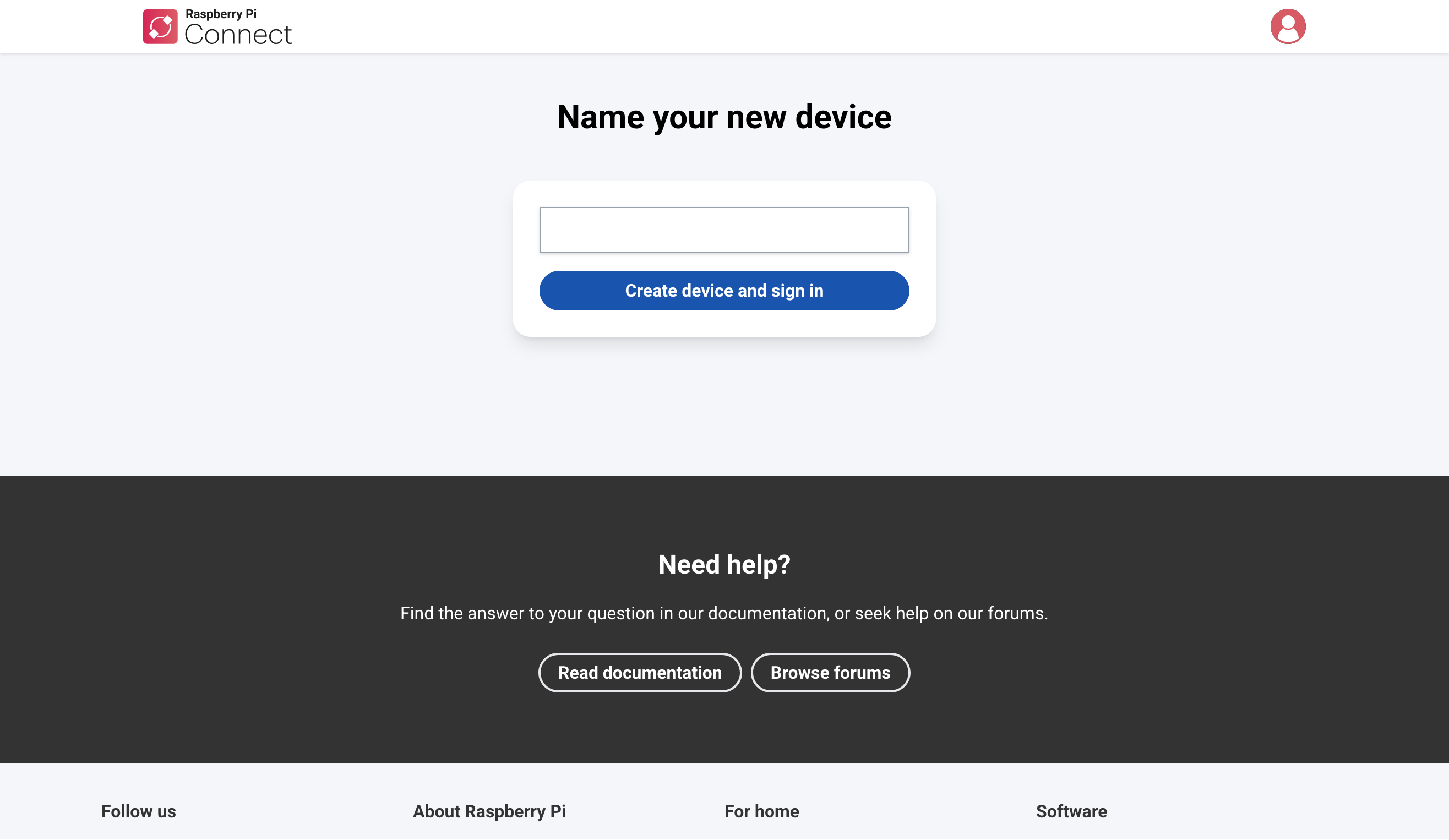
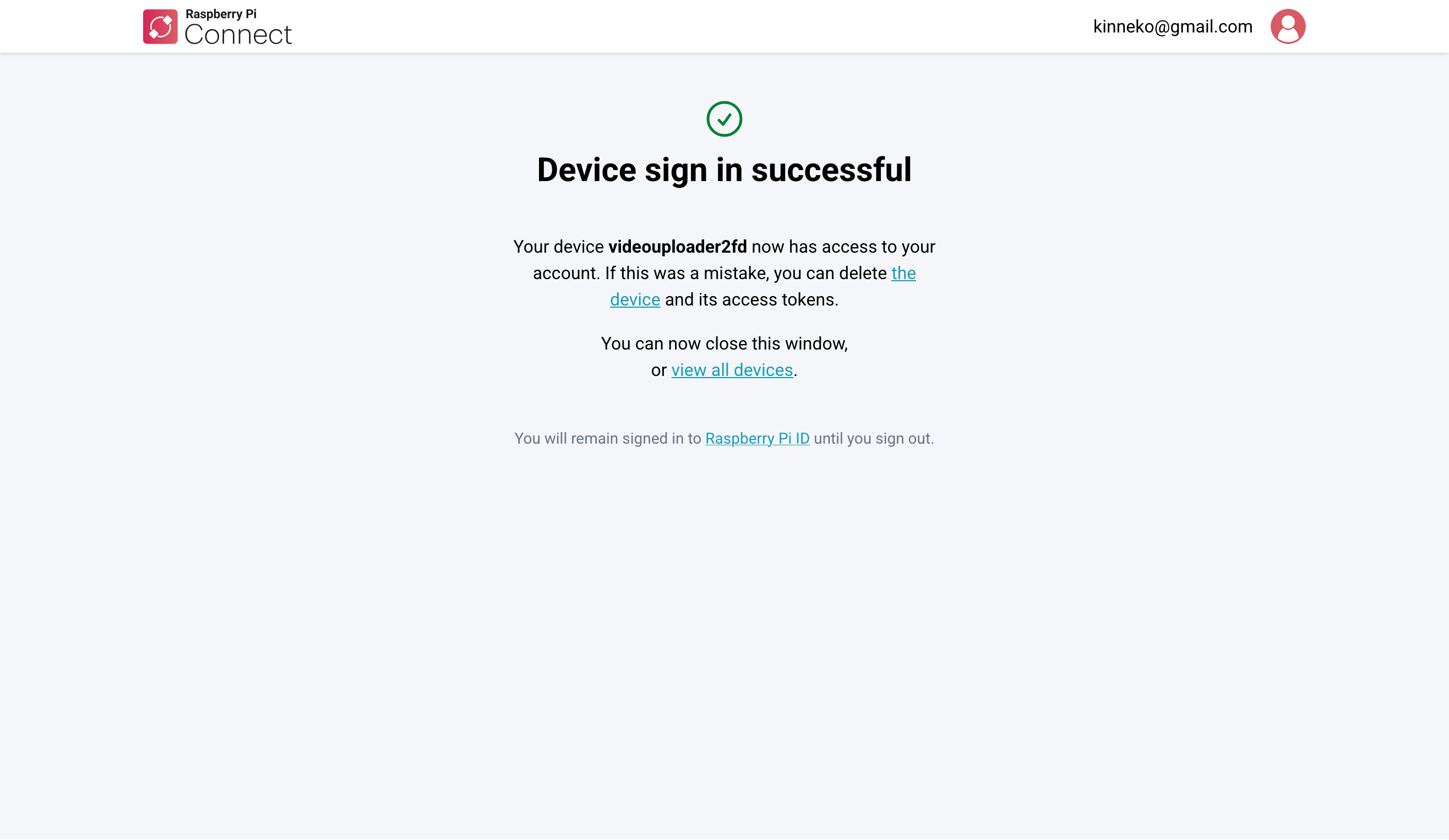
コンソールの表示も変化して終わった。
✓ Signed in
ブラウザ画面でもデバイスが登録されているのがわかる。
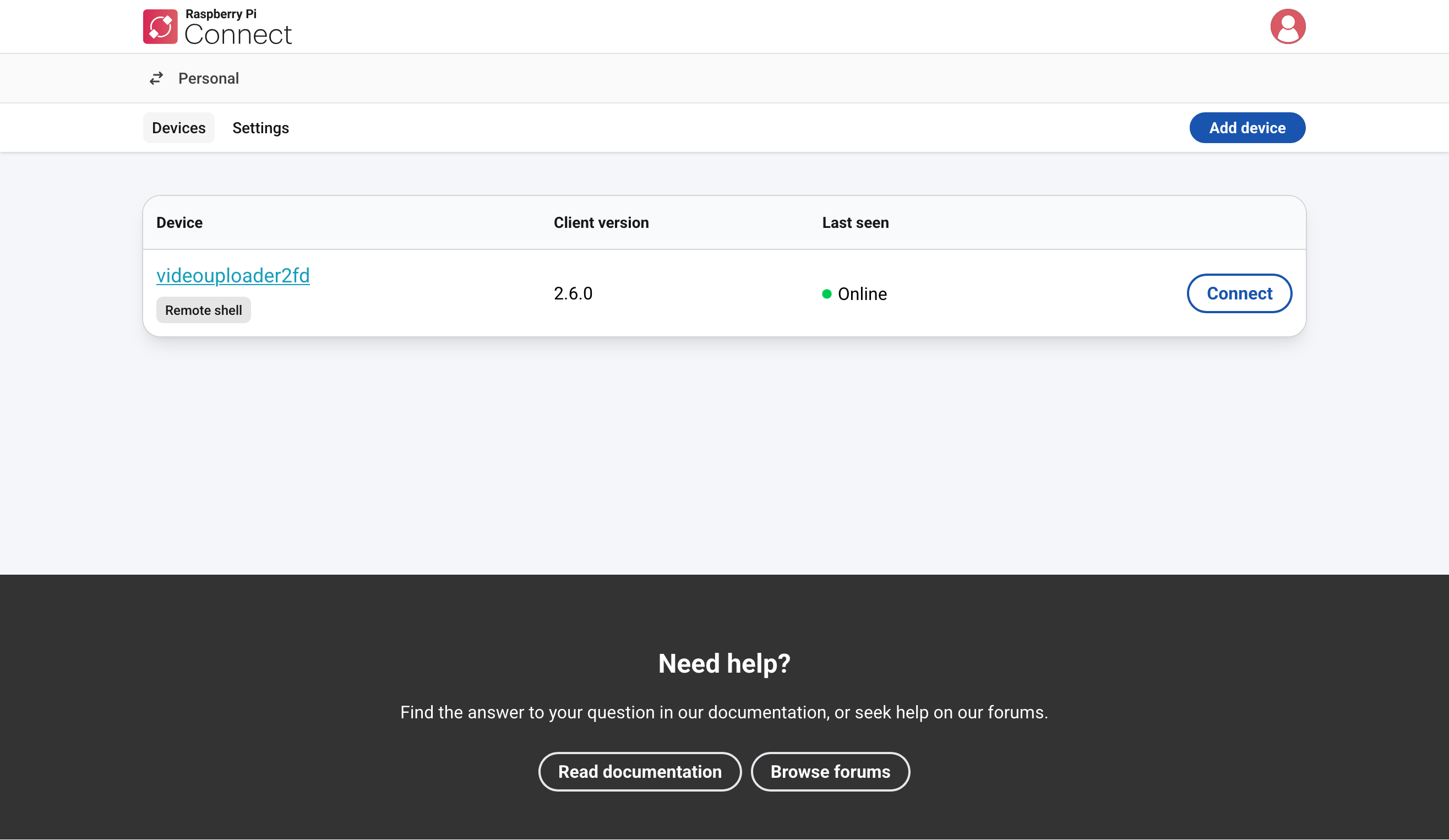
サービス状態の確認
$ rpi-connect status
Signed in: yes
Subscribed to events: yes
Screen sharing: unavailable
Remote shell: allowed (0 sessions active)
診断コマンド
$ rpi-connect doctor
Screen sharing is not supported by this version of rpi-connect, please install the rpi-connect package if this is unexpected
✓ Communication with Raspberry Pi Connect WebSocket server
✓ Communication with Raspberry Pi Connect API
✓ Authentication with Raspberry Pi Connect API
✓ Peer-to-peer connection candidate via STUN
✓ Peer-to-peer connection candidate via TURN
If your device still doesn't appear as "Online" then please try running rpi-connect restart.
接続手順
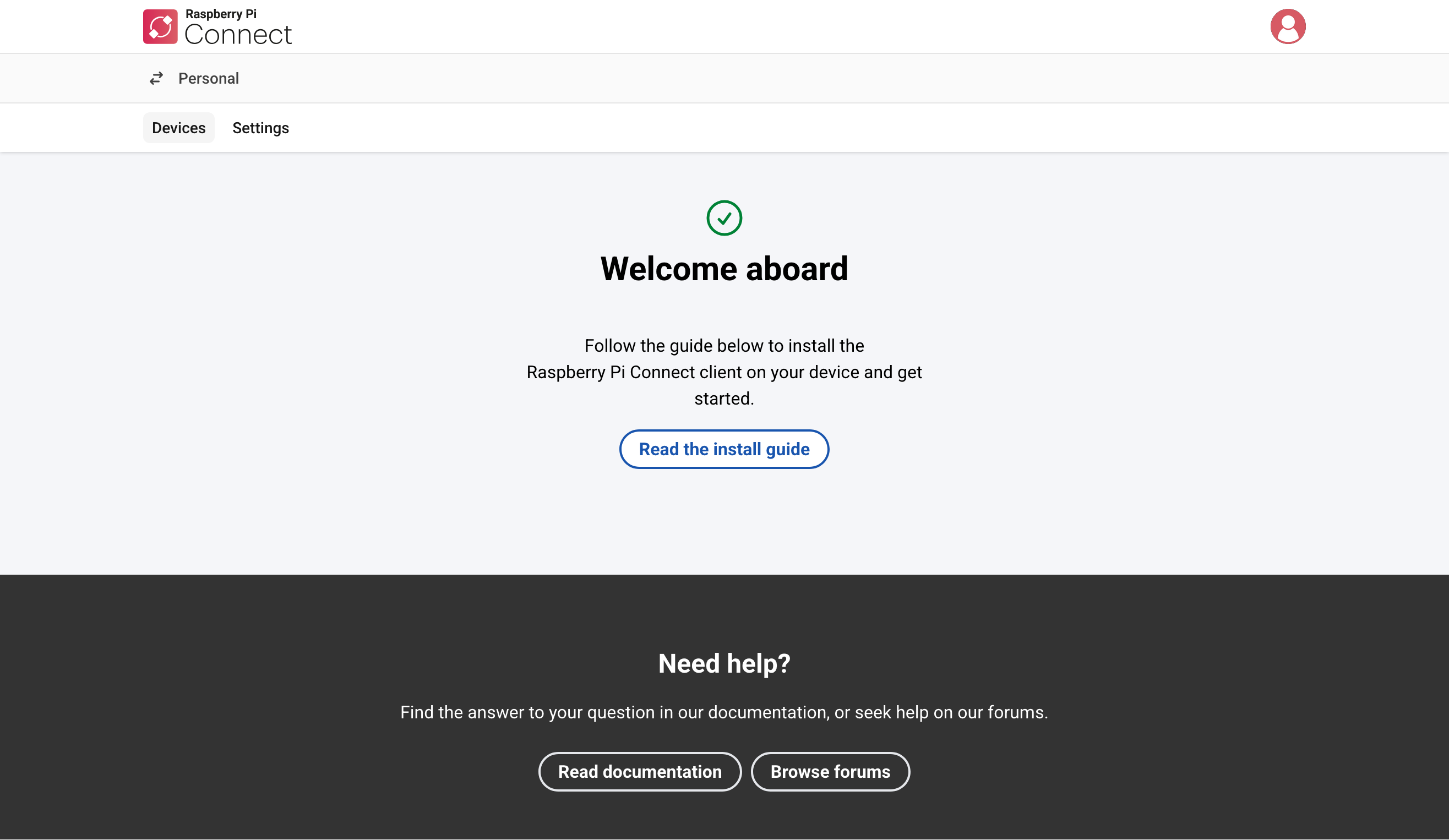
ブラウザでConnectにアクセスしてサインインする。デフォルトでは以下のようにデバイスは登録されていないが、先ほど登録はしたので、画面にはデバイスが表示される。
https://connect.raspberrypi.com
デバイス一覧から接続先を選択する。CLIだけなので「Remote shell」アイコンしか出ていない。Connectボタンで別ウインドウが開いてシェル接続される。

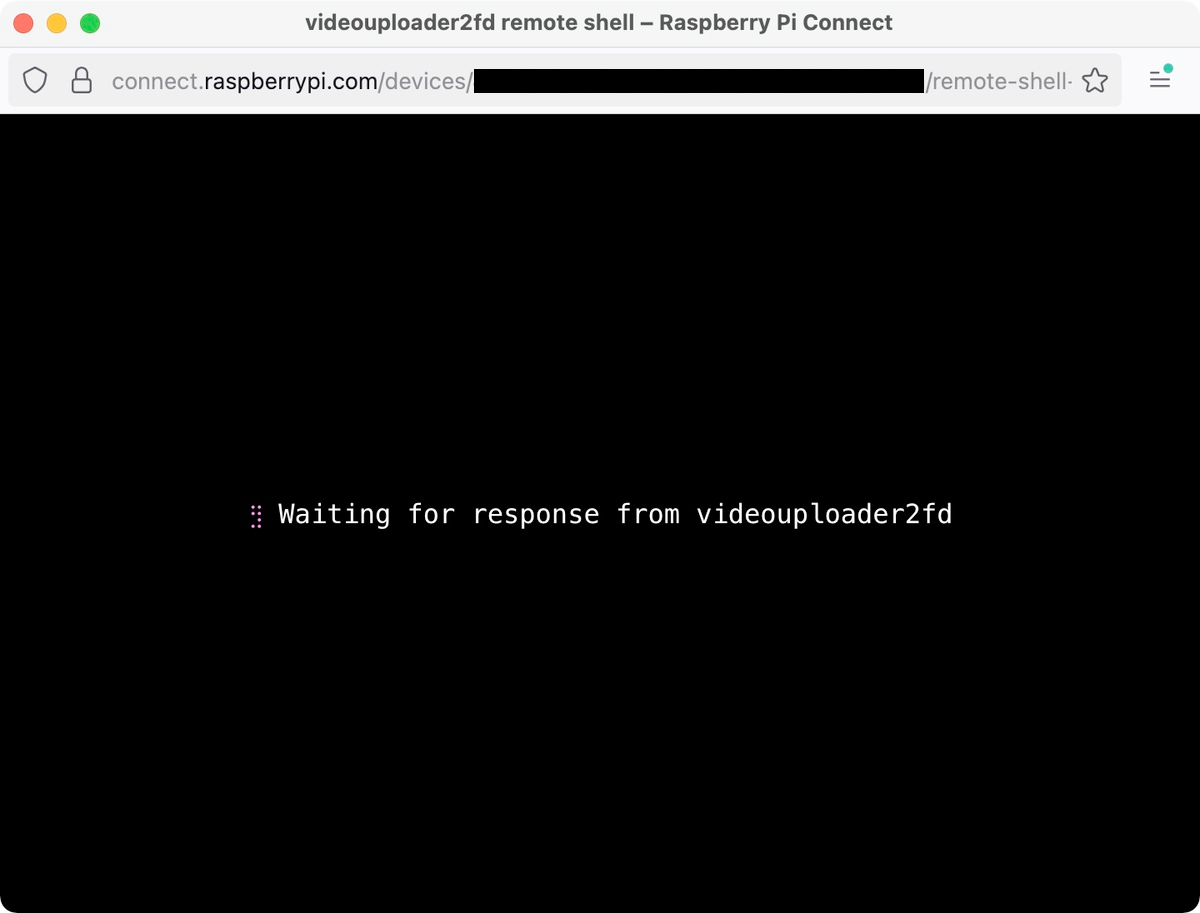
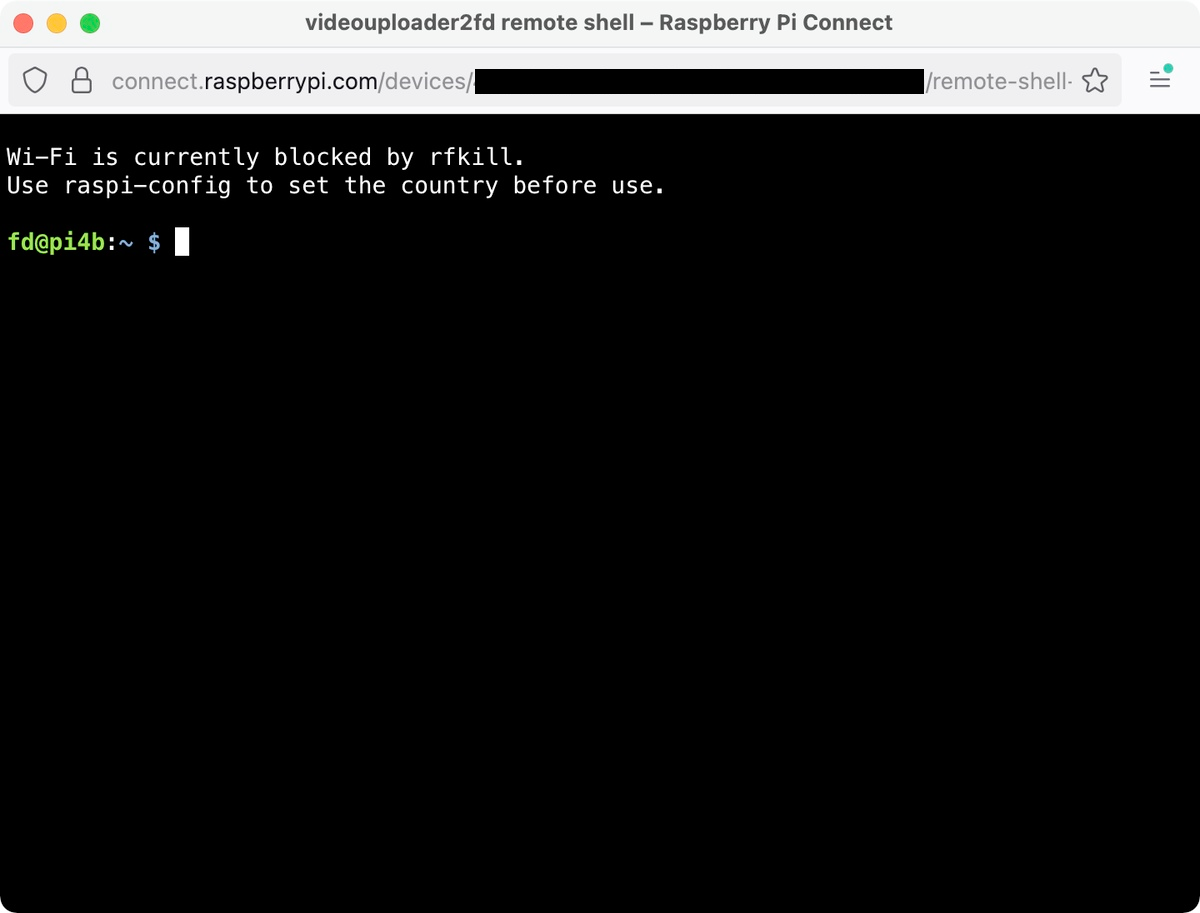
あとは普通に使える。
shellをexitすると切れる。
便利〜。
あ、GUIデバッグには、pygameの画面でも表示できたほうがよかったのかな?
オリジナル投稿:
Raspberry Pi ConnectをCLIで設定する|kinneko|pixivFANBOX
https://kinneko.fanbox.cc/posts/10749752